girl who code • mostly iOS 👩🏼💻
Getting your app ready for iPhone Duo: what actually broke
19 Oct 2026
iPhone Duo ships on 23 October, and from April 2027 Apple will ask for Duo screenshots with every new App Store submission. So sooner or later, every iOS app has to look right on it.
We spent the last few weeks running Lake, our coloring and journaling app, on the Duo simulator, screen by screen, with our designers marking every glitch. Lake is mostly UIKit, with the newer screens in SwiftUI.
Lake is iPad-first, so it has always scaled to large screens, and on iPad you can already resize its window to any size you like. Resizability, the thing everyone is so worried about, we thought we had covered. Then Apple announced the Duo and the vertical bar, and that changed the game.
Still, very little of what broke was exotic. Almost all of it came from assumptions that were true on every iPhone until now. Here's the short checklist, then the details, roughly in the order I'd check them.
TL;DR
- Three screens, not one. Your app runs in landscape on the inner display even if it only supports portrait, so test it there.
- The side safe area. Pin to the safe area horizontally, not to the screen edges.
- The vertical bar. Check every screen with a navigation bar, and opt a screen out if its buttons belong at the top.
- If you keep the vertical bar. Hiding the status bar doesn't remove the column, so decide with your designers what goes under it.
- Breakpoints. Test each one at 466 × 678, 669 × 951 and 951 × 669.
.padchecks. If one really means "big screen", base it on the available space instead of the device.- Folding. Fold and unfold with each screen open, not just at launch.
Three screens, not one
The Duo gives your app three quite different canvases: the cover display when it's folded, and the big inner display, in portrait or landscape.
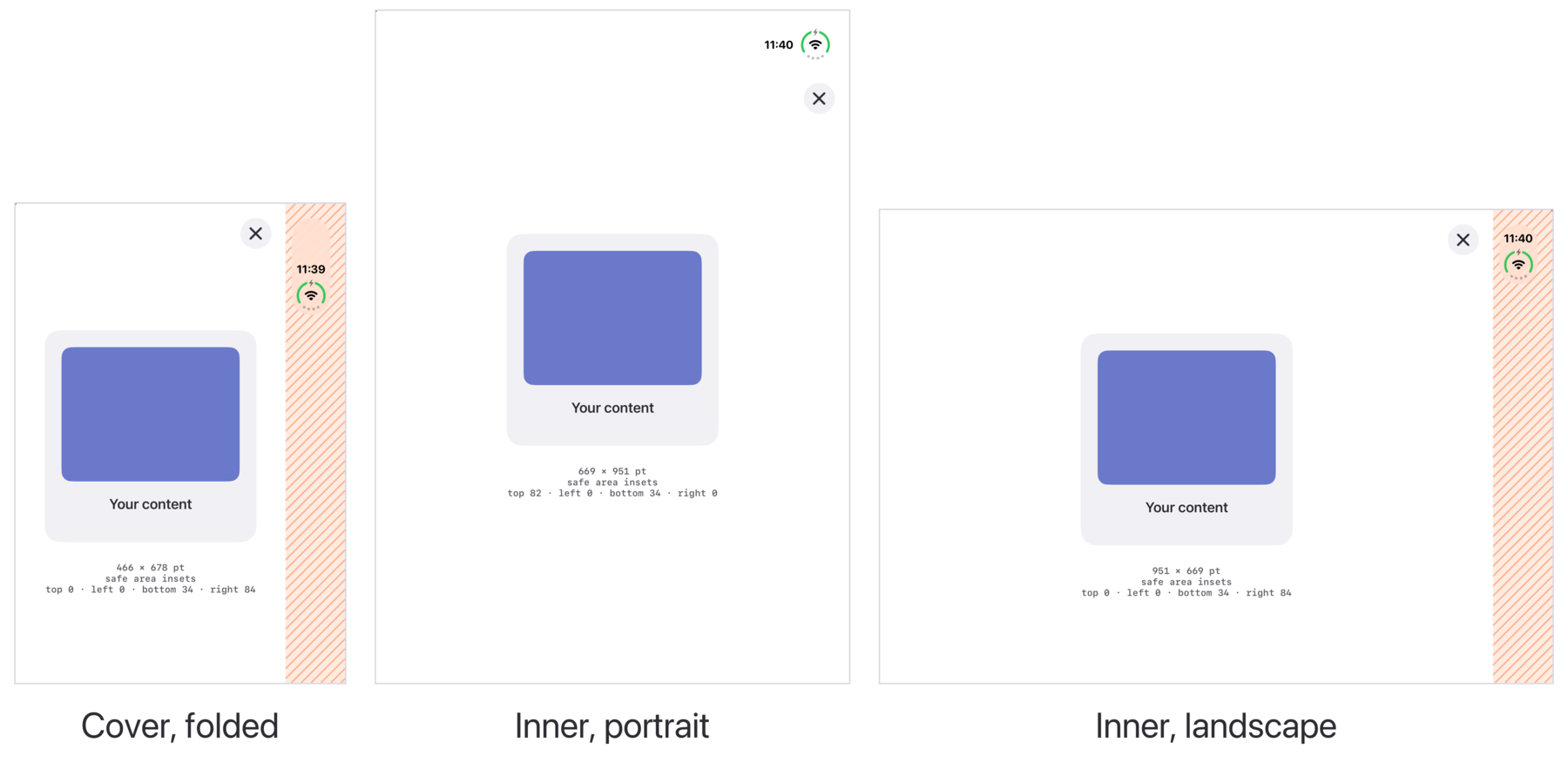
| Display | Size (pt) | Safe area |
|---|---|---|
| Cover, folded | 466 × 678 | 84 pt on the side |
| Inner, portrait | 669 × 951 | at the top, like an iPhone |
| Inner, landscape | 951 × 669 | 84 pt on the side |
Two things matter more than the numbers.
It's still an iPhone. The inner display reports regular width and height, the same size classes as an iPad. But userInterfaceIdiom is still .phone. Code that checks size classes treats it like an iPad, and code that checks the idiom treats it like an iPhone. Most apps check both, in different places, so you get a mix that nobody designed.
Portrait lock doesn't protect you. The inner display ignores UISupportedInterfaceOrientations. If your iPhone app only supports portrait, it still runs in landscape on the inner display, and every screen that was only ever designed tall and narrow is now wide and short.
The side safe area isn't zero any more
On every iPhone so far, a portrait screen had safeAreaInsets.left and .right at 0. A lot of code quietly relies on that.
On the cover display and in inner landscape, iOS 27 moves the status bar into a vertical bar along one side, the side with the camera. It reserves an 84 pt column for it, and the safe area reports that column as a side inset. Anything pinned to the screen edges ends up underneath it:
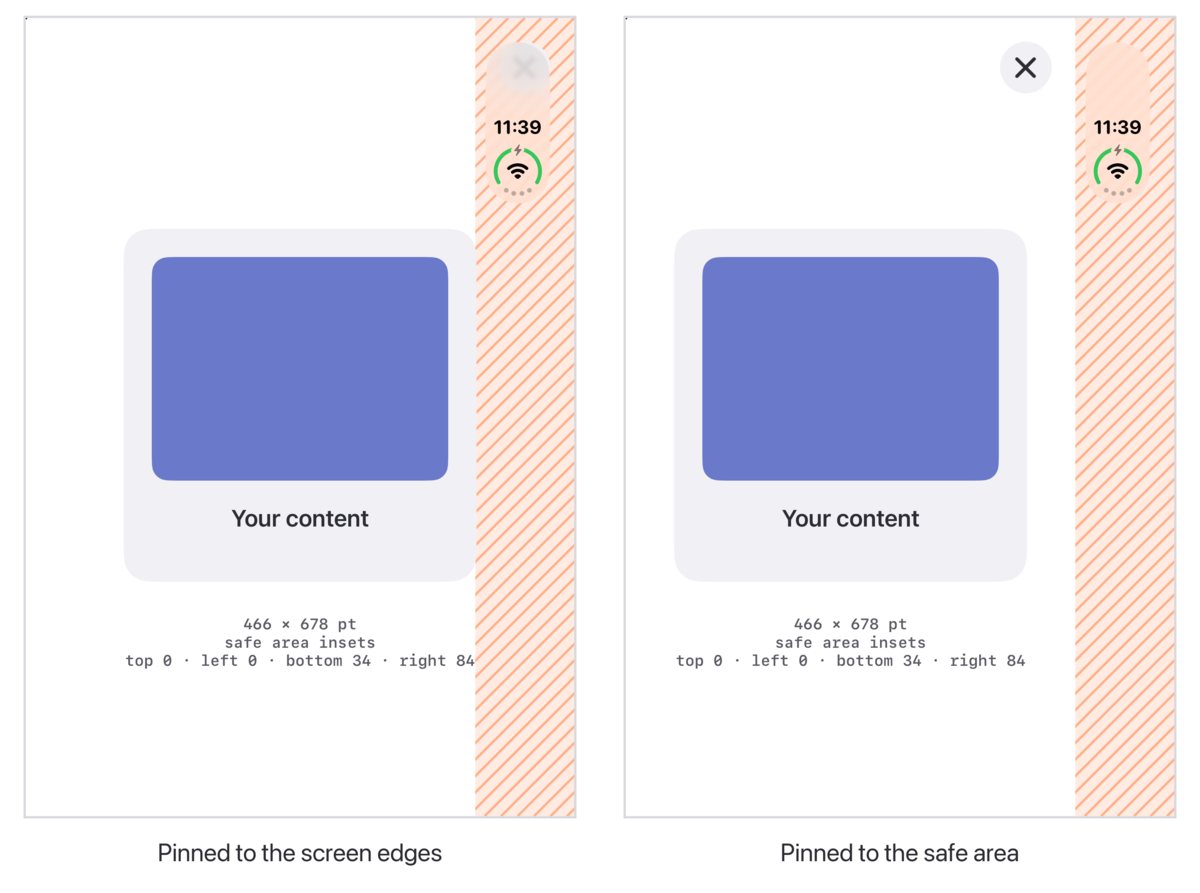
The close button on the left is still there. It's hidden under the clock. That was our most common bug: close and share buttons pinned to the top-trailing corner, which on the Duo is exactly where the status bar now lives.
The fix is the boring, well-known one, applied horizontally and not just at the top:
// Before: fine on every iPhone until now
closeButton.trailingAnchor.constraint(
    equalTo: view.trailingAnchor, constant: -20)

// After: follows the vertical bar, whichever side it's on
closeButton.trailingAnchor.constraint(
    equalTo: view.safeAreaLayoutGuide.trailingAnchor, constant: -20)
In SwiftUI, look for .ignoresSafeArea() on anything that isn't a background.
Other places this showed up for us:
- Content that looks off-centre. A card centred on the full width sits 42 pt (half the column) off-centre next to content that respects the safe area.
- Custom popups and sheets. Our own presentation controllers set the horizontal safe area to zero, or pinned the popup to the edges of the screen.
iOS 27's vertical bar
The column isn't just for the status bar. When a screen has a navigation bar, iOS 27 moves its buttons into the same vertical bar:
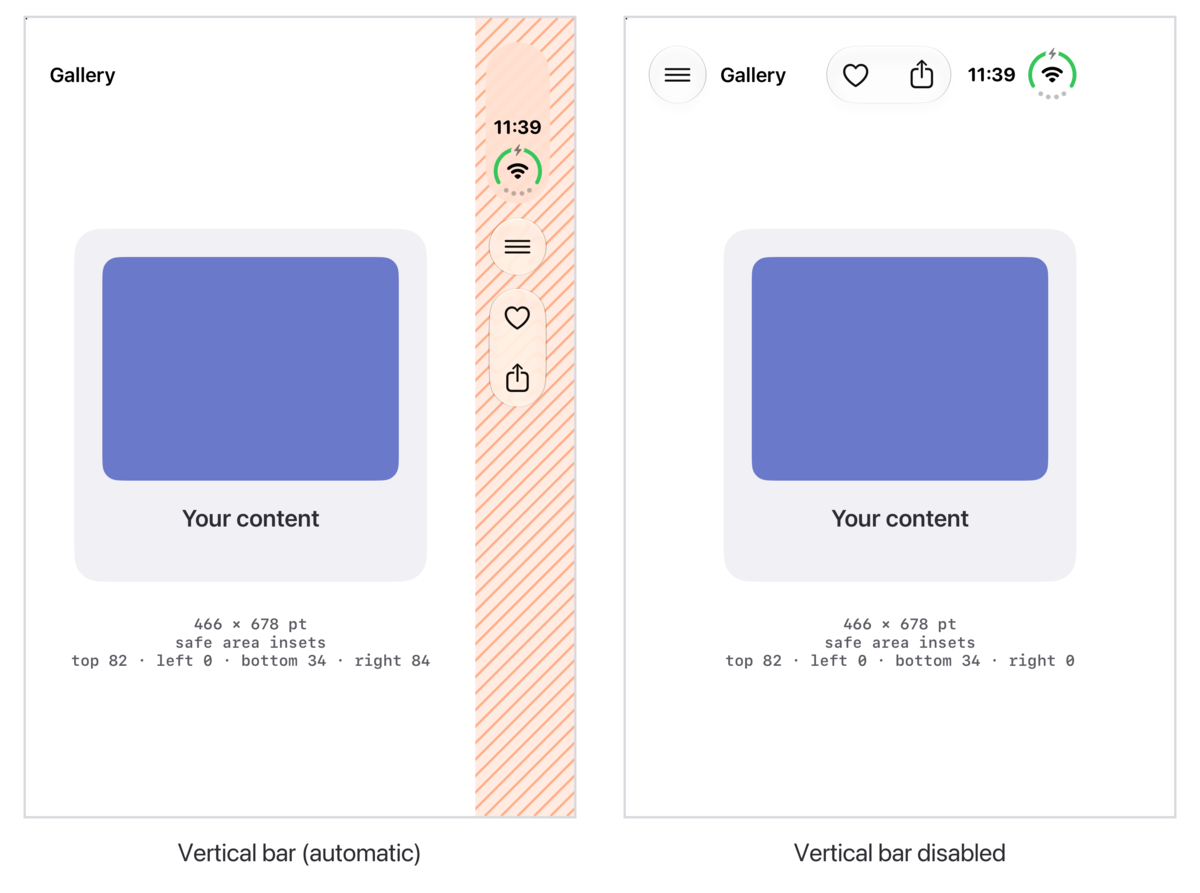
It's a sensible default, but it breaks layouts that expect their buttons across the top. A view controller can opt out:
override var preferredVerticalBarBehavior: UIVerticalBarBehavior {
    .disabled
}
With the vertical bar disabled, the buttons and the status bar move back to the top, and the side inset goes away: the safe area becomes 82 pt at the top instead of 84 pt on the side. Apple's documentation asks you to use this sparingly, for screens like full-screen players or calculators. It's also not great UX to mix the two too much in one app: if some screens keep their buttons at the top and others move them into the vertical bar, the buttons jump around as people navigate. Apple's documentation makes the same point, asking you to treat the setting as a stable choice. It also warns that a bar button item marked horizontal-only isn't shown at all when there's no horizontal bar, so opt the whole screen out rather than individual buttons.
One more trap, from our own card-style popups: the card itself had no side inset, but the screen inside it still got the window's 84 pt inset from the vertical bar, so its content sat off-centre inside the card. Opting those screens out of the vertical bar fixed it. If you have custom presentations, check the safe area inside them.
If you keep the vertical bar
Turning the vertical bar off is meant for a few special screens, so on most screens the column stays. Two things we expected to help with it didn't.
Hiding the status bar doesn't remove the column. With prefersStatusBarHidden = true, the clock and Wi-Fi icons disappear, but the inset stays at 84 pt and you're left with an empty column. Only turning off the vertical bar gives the space back.
Scroll edge effects don't draw there. Think of a horizontal carousel of cards. It scrolls to the edge of the screen, so its cards slide under the column, behind the clock. Since iOS 26, the obvious fix is a scroll edge effect: the soft fade iOS already draws where content meets the top bar. We tried it on the trailing edge every way we could think of:
- SwiftUI's
scrollEdgeEffectStyle, both.softand.hard, with and withoutcontentMargins; - UIKit's edge effects on a horizontal
UIScrollView, both nested inside the page and as the page's own scroll view.
None of them draw anything in the column, while the effect at the top works as usual. A scroll view nested inside another one doesn't even see the side inset: its safe area reports 0.
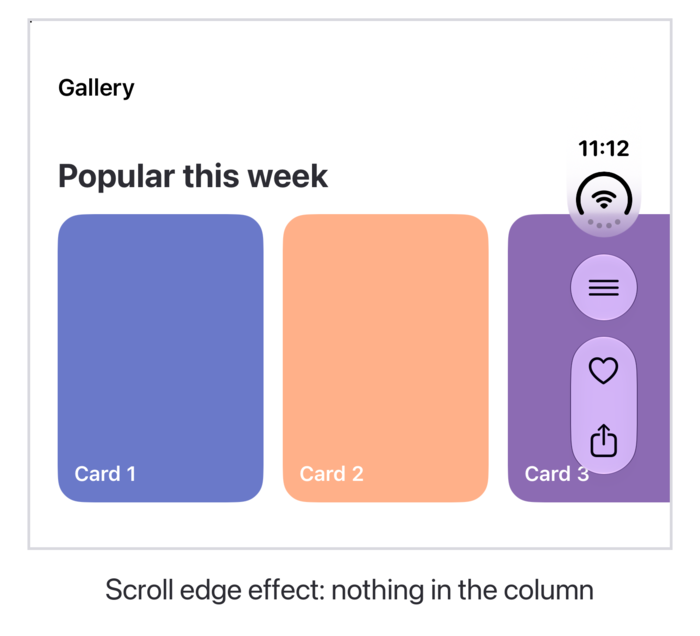
So treat the column as part of the layout and ask your designers what should be under it. We left it plain on most screens.
Breakpoints that don't expect this shape
Many apps pick a layout from the screen size: a phone layout below some size, a tablet layout above it. Inner landscape is 951 pt wide and only 669 pt tall, a shape no iPhone or iPad has. Ours slipped past the checks for small screens and landed in the iPad layout: iPad spacing on a screen two-thirds the height of an iPad, so some screens ran out of room and their buttons ended up off the bottom.
Search your code for every breakpoint and size-class branch, and check what each one does at 951 × 669 and at 669 × 951. If a rule only looks at width, it's probably wrong for one of them.
Check what you gate on .pad
The opposite problem: features you hid on iPhone because the screen was too small. The Duo is still a .phone, so they stay hidden, even on the big inner display.
Search for userInterfaceIdiom == .pad and decide for each one whether it means "iPad" or "big screen". Ours included an Apple Pencil hover preview. The Duo works with the USB-C Apple Pencil, which supports hover and tilt but not pressure, squeeze or double-tap. So hover was the one premium Pencil feature that would have worked, and we were hiding it.
For anything that's really about room on screen, don't check the idiom at all. Apple has long advised basing layout on the space you actually get (size classes and the size of your view) rather than on the kind of device, and the Duo is exactly why. Keep idiom checks for things that really differ between devices.
Folding happens while your screens are open
On an iPhone, the screen only changes when it rotates, and plenty of apps are locked to portrait, so for them it never changes. On the Duo, folding and unfolding change the size, the size classes, the safe area and the bars, while the user is in the middle of something.
Anything you work out once and keep goes stale: a "current screen size" saved at launch, a status bar setting chosen during a transition, constraints built from safeAreaInsets numbers instead of the layout guide. We found screens that looked right after a fresh launch on the inner display and wrong after unfolding the phone.
UIKit tells you when these change: viewWillTransition(to:with:) for size, viewSafeAreaInsetsDidChange() for the safe area, and trait change registration for size classes. If your layout reads any of these values directly, update it there.
In SwiftUI, most of this happens on its own: views that read horizontalSizeClass from the environment, or simply lay out in the space they're given, update when the phone folds. The stale bugs come from copying those values somewhere, for example measuring a size in onAppear and keeping it in @State. Use onGeometryChange(for:of:action:) instead, which runs again every time the size or the safe area changes.
Test it without a Duo
You don't need hardware for any of this. The iPhone Duo simulator in Xcode 27.1 caught every layout problem above:
- Device Hub (Xcode 27's replacement for Simulator.app) folds, rotates and taps both displays. Hold Option to get the hinge slider.
- One screenshot per display:
xcrun simctl io <udid> screenshot --display=1captures the cover and--display=3the inner display. A plain screenshot always captures the inner display, which is black while the phone is folded. - Scripts and AI agents: duoctl folds, rotates and taps the simulator from the command line. All the screenshots in this post were taken with it. My post on scripting the Duo simulator explains how it works.
- XCUITest runs on the Duo, but it can't fold or rotate it:
XCUIDevice.shared.orientationchanges nothing there. Put the simulator in the posture you want first, in Device Hub or with duoctl, then run your tests. We've only verified it on the folded phone.
A cheap first pass: open each main screen in all three postures, take a screenshot of each, and put them side by side. Most of the problems above are obvious at a glance.
None of this is hard. It's just a lot of small places where we assumed an iPhone was a fixed, portrait rectangle with the status bar at the top, and the Duo isn't. Start early, and April 2027 will be a non-event.